
How to Use the Executive Function Suite
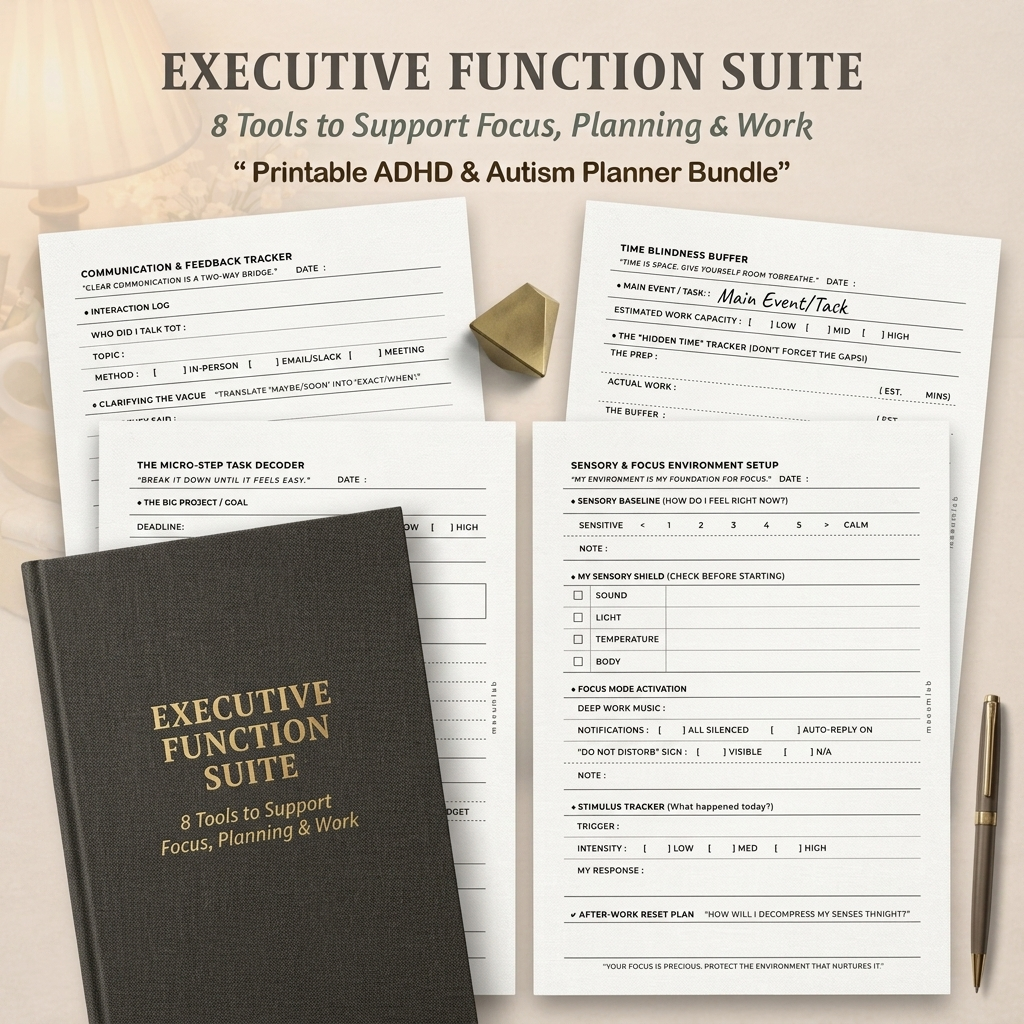
The Executive Function Suite is a collection of 8 printable tools designed to support the everyday challenges that can come with planning, focus, task initiation, time awareness, decision-making, communication, and energy management.
Rather than using every page every day, choose the tool that matches what you need in the moment. You might use the Task Decoder when a project feels too big to start, the Time Blindness Buffer when planning your day, or the Decision Fatigue Reducer when too many choices are taking up your mental energy.
Each page can be used on its own or combined with the others to create a flexible executive function support system that works with your needs and routines.
In this guide, we’ll walk through all 8 tools, what each one is designed to support, and simple examples of how to use them in everyday life.
The 8 Tools
01 Task Decoder
02 Time Blindness Buffer
03 Sensory & Focus Environment Setup
04 Communication Tracker
05 Priority Matrix & Energy Matcher
06 Decision Fatigue Reducer
07 Shutdown Ritual
08 Weekly Executive Audit
1.The Micro-Step Task Decoder
Turn overwhelming tasks into small, clear actions.
The Micro-Step Task Decoder is designed for tasks that feel too big, vague, or difficult to start. Begin with the larger project or goal, identify one very small first step, and then break the rest into manageable actions.
Use this page when you know what you need to do, but you’re having trouble figuring out where to begin.
How to Use It:
- Write down the main project or goal.
- Choose a tiny first action that feels easy to start.
- Break the project into clear, concrete steps.
- Note any tools, sensory supports, or distraction boundaries you may need.
- Define what “done” looks like so the task has a clear endpoint.
Example:
Instead of writing “Finish presentation,” start with “Open PowerPoint and save the file,” then build the remaining steps from there.
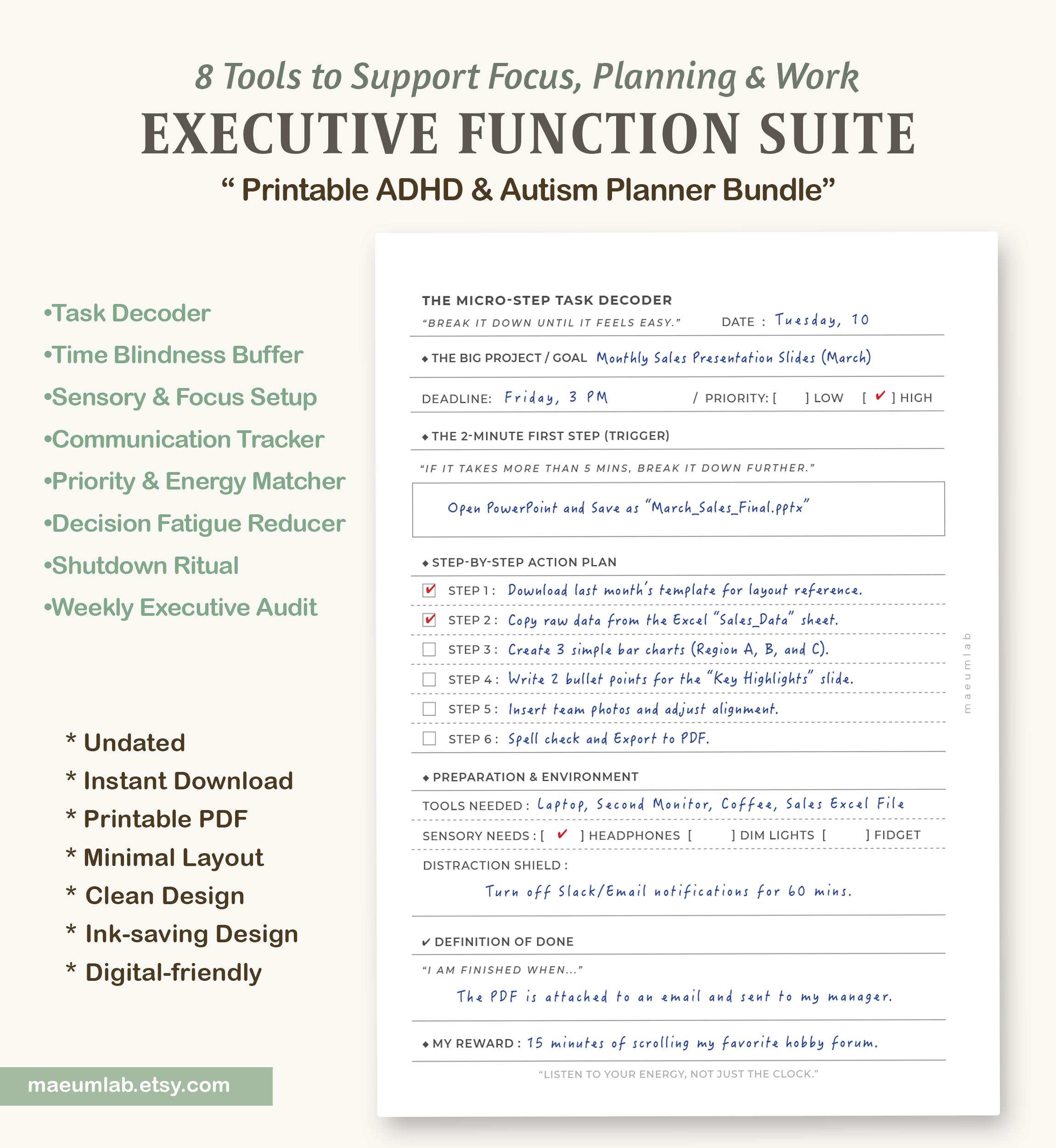
Example shown: Breaking a monthly sales presentation into smaller, actionable steps.
2.Time Blindness Buffer
Make space for the time that usually gets forgotten.
The Time Blindness Buffer helps you plan beyond the task itself. Instead of estimating only the time spent doing an activity, this page encourages you to include the often-overlooked time needed to prepare, transition, wrap up, and reset afterward.
Use this page when appointments, meetings, errands, or work tasks regularly take longer than expected—or when scheduling activities too close together leaves you feeling rushed or drained.
How to Use It:
- Start with one main event or task.
- Estimate your available work capacity for the day.
- Add the prep time, actual work time, and a realistic buffer afterward.
- Map the full activity using the visual time blocks.
- Use the transition checklist before moving to your next task.
- At the end, check whether you gave yourself enough “in-between” time.
Example
A 60-minute meeting may actually need much more than 60 minutes in your schedule:
15 min preparation → 60 min meeting → 20 min buffer
The buffer might include saving notes, closing tabs, getting water, taking a short movement break, or simply having a few minutes before starting the next task.
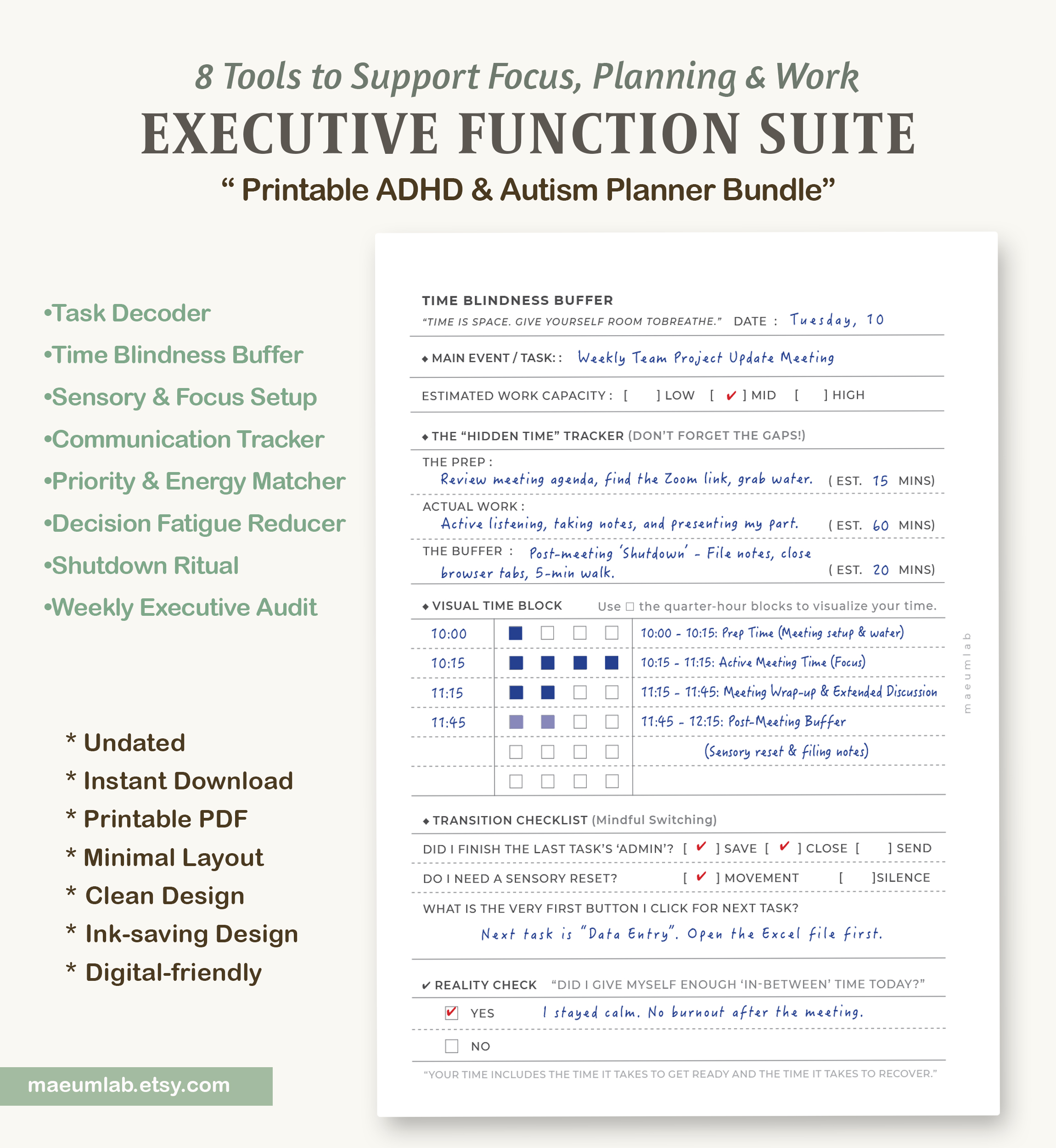
Example shown: Planning the hidden time around a team meeting, including preparation, transition, and recovery.
3.Sensory & Focus Environment Setup
Create an environment that supports your focus before asking yourself to focus.
The Sensory & Focus Environment Setup helps you notice how your surroundings may be affecting your ability to concentrate. Instead of pushing through uncomfortable sensory input, this page helps you identify what can be adjusted before starting work.
Use this page when you feel distracted, overstimulated, unusually restless, or unable to settle into a task—even when you know what you need to do.
How to Use It:
- Check your sensory baseline before beginning.
- Notice which environmental factors may need adjusting: sound, lighting, temperature, or physical comfort.
- Set up your personal sensory shield before starting focused work.
- Reduce unnecessary interruptions by adjusting notifications and communication boundaries.
- Record sensory triggers that appear during the day and what helped.
- Create a simple after-work reset plan if you need time to decompress.
Example
You may notice that you’re already more sensitive than usual after a noisy commute.
Instead of expecting yourself to work under normal conditions, you might:
Noise-canceling headphones → softer lighting → notifications off → water nearby → short sensory reset after work
The goal isn’t to create a perfect environment. It’s to identify a few adjustments that make focusing require less effort.
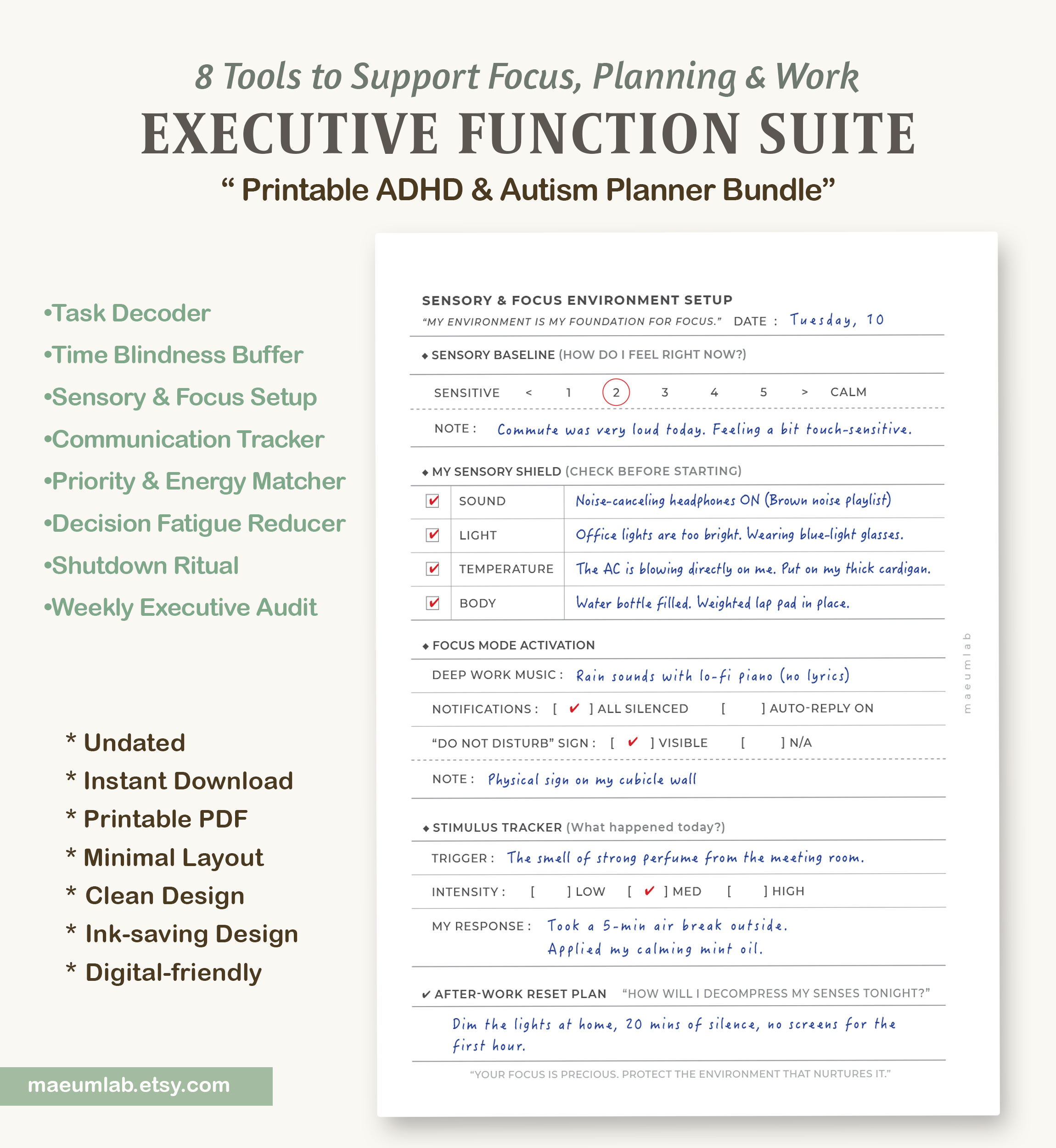
Example shown: Adjusting sound, light, temperature, and physical comfort to create a more supportive focus environment.
4.Communication & Feedback Tracker
Turn vague conversations into clear, actionable next steps.
The Communication & Feedback Tracker helps you capture important details from conversations, meetings, emails, or messages before they get lost or become difficult to interpret later.
It can be especially useful when instructions feel vague, there are several action items to remember, or you want a clear record of feedback and follow-up questions.
How to Use It:
- Record who you communicated with, the topic, and how the conversation happened.
- Write down vague or unclear instructions in the speaker’s original meaning, then translate them into a specific deadline or expectation.
- Pull out the most important action items instead of keeping them in your head.
- Save relevant links, files, or locations you’ll need later.
- Separate what went well from what needs adjustment when receiving feedback.
- Write down unanswered questions so you know exactly what to clarify next.
Example
Instead of leaving a conversation with:
“Send me an update whenever you’re ready.”
turn it into something actionable:
Deadline → Wednesday by 2:00 PM
Success → Send a PDF summary of three finalized designs
Next actions → Export PDF → Add explanation → Send email
This creates a concrete record you can return to instead of relying on memory or trying to interpret the conversation again later.
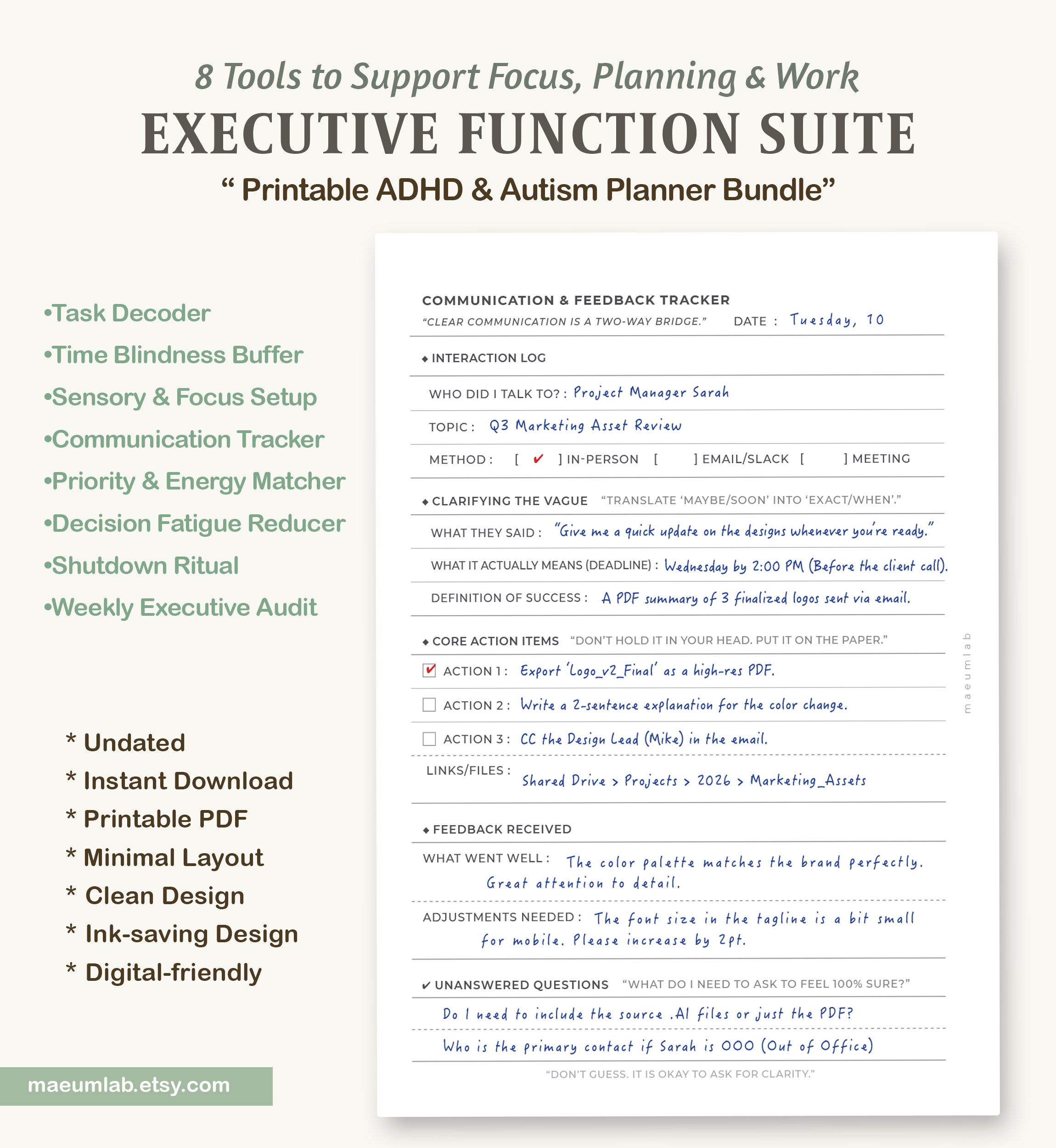
Example shown: Turning vague project feedback into clear deadlines, action items, adjustments, and follow-up questions.
5.Priority Matrix & Energy Matcher
Choose tasks based on both priority and the energy you actually have.
The Priority Matrix & Energy Matcher helps you decide what to work on by considering two things together: how important a task is and how much mental energy you have available right now.
Instead of expecting the same level of productivity throughout the day, this page helps you match demanding tasks with higher-energy periods and save simpler tasks for times when focus or energy is limited.
How to Use It:
- Start by checking your current battery level: Low, Medium, or High.
- Place tasks in the matrix based on their impact and the energy they require.
- Match high-focus tasks with higher-energy periods.
- Keep simple or routine tasks available for lower-energy periods.
- Move nonessential tasks to the “Not Today” List instead of forcing everything into one day.
- Recheck your energy later and adjust your plan if needed.
Example
If your energy is Medium after a morning of meetings, you don’t necessarily need to tackle your most demanding project next.
You might organize your work like this:
High Energy → Draft a complex report
Medium Energy → Update a progress dashboard and respond to messages
Low Energy → File receipts or organize your workspace
Not Today → Difficult phone call that would be easier with more energy
The goal is not to avoid important work. It’s to choose a better time for work that requires more cognitive effort.
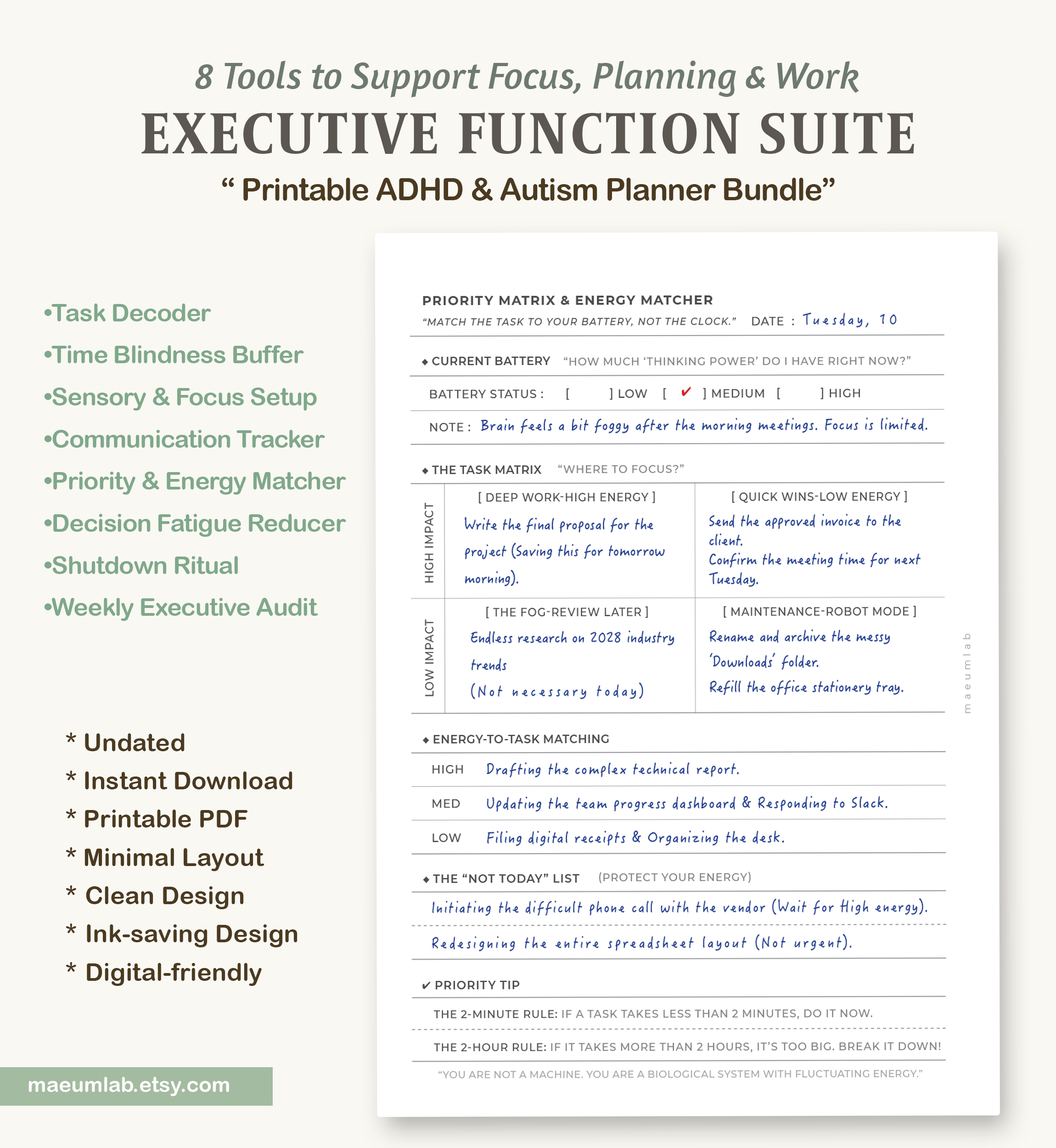
Example shown: Matching work tasks to current energy and moving nonessential tasks to a “Not Today” list.
6.Decision Fatigue Reducer
Make a clear decision without getting stuck searching for the perfect choice.
The Decision Fatigue Reducer helps when too many options, competing priorities, or repeated second-guessing make even a small decision feel mentally exhausting.
Instead of continuing to compare every possibility, this page helps you narrow the decision, identify what actually matters, and choose a practical “good enough” option.
How to Use It:
- Write down the specific dilemma that is keeping you stuck.
- Use the Binary Filter to decide whether the choice actually needs to be made today and whether a “good enough” solution exists.
- Narrow your possibilities to just three options.
- If you’re still stuck, use a simple tie-breaker such as which option is fastest or requires the least energy.
- Write down your final decision.
- Once you’ve chosen, give yourself permission to stop reconsidering it for a while.
Example
You need to organize meeting notes but keep switching between three different formats.
Instead of spending more time comparing them:
Option A → Simple bullet points — fast and familiar
Option B → Detailed table — polished but time-consuming
Option C → Digital board — flexible but more complicated
If the notes simply need to be useful and shared quickly, you might choose:
Final Decision → Simple bullet points
The goal isn’t to make the perfect decision every time. It’s to reduce the mental energy spent staying stuck between choices.
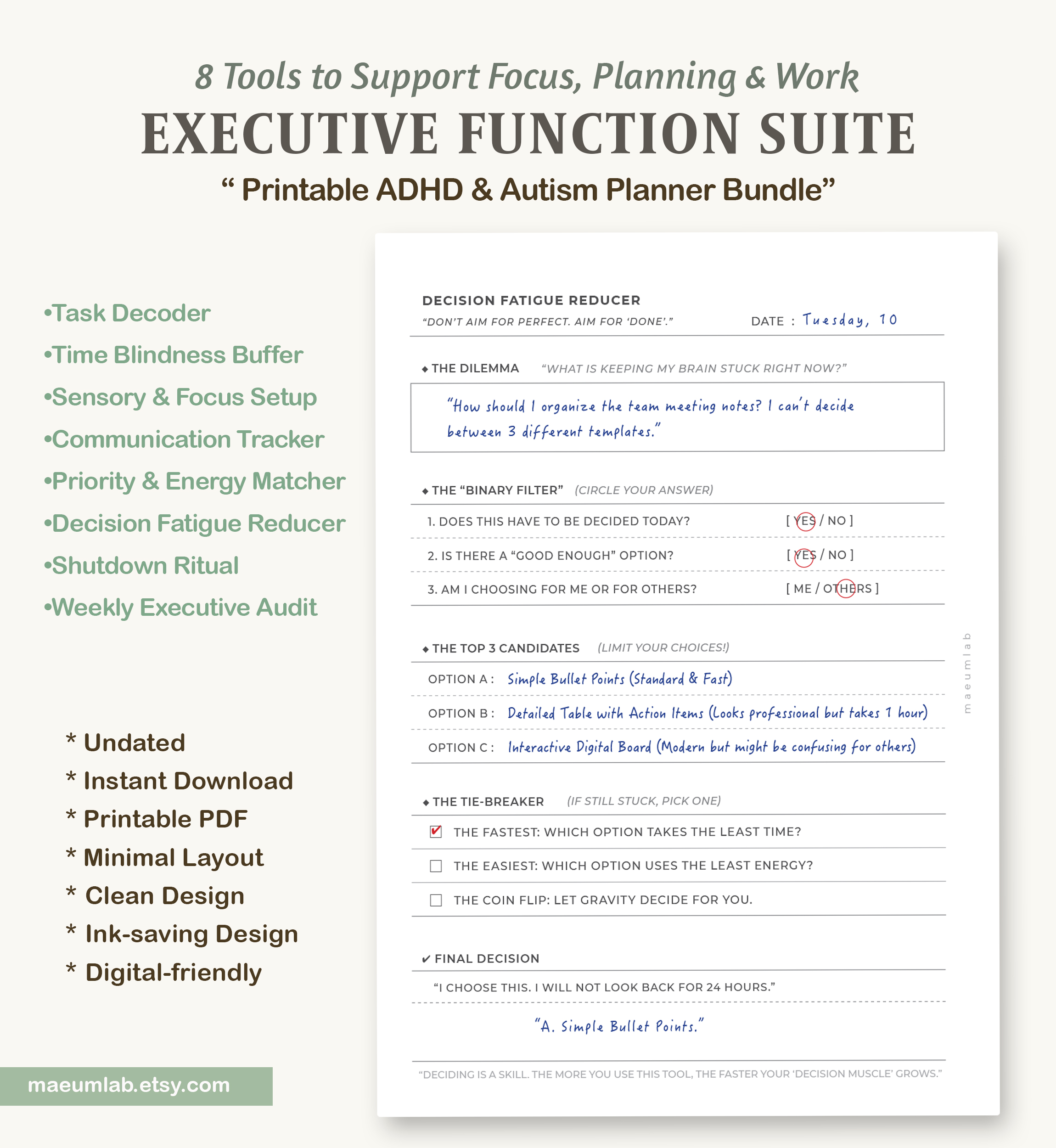
Example shown: Narrowing three possible options and using a simple tie-breaker to make a practical final decision.
7.Shutdown & Transition Ritual
Create a clear ending to your workday and make tomorrow easier to start.
The Shutdown & Transition Ritual helps you move from work mode into rest mode without carrying unfinished tasks and reminders around in your head.
Instead of simply stopping when you’re tired or when the clock says the workday is over, this page gives you a short closing routine for capturing loose ends, preparing a starting point for tomorrow, and creating a clearer transition away from work.
How to Use It:
- Write down unfinished tasks, reminders, or thoughts still taking up mental space.
- Choose one clear starting point for tomorrow so you don’t have to figure out where to begin again.
- Record one small daily victory or something that went well.
- Complete your practical shutdown steps, such as saving files, closing tabs, checking tomorrow’s schedule, or clearing your workspace.
- Choose a simple sensory transition to signal that work is finished.
- Finish with the closure statement as a clear endpoint to your workday.
Example
At the end of the day, instead of trying to remember:
“I need to send that PDF, check the font size, and ask for the meeting link tomorrow…”
put those thoughts on the page and choose one starting action:
Tomorrow’s Starting Point → Open the report file and check the email for the meeting link.
Then complete your shutdown routine:
Save files → Close tabs → Review tomorrow → Clear desk → Dim lights
This gives unfinished work a place to wait until tomorrow instead of asking you to keep mentally holding onto it.
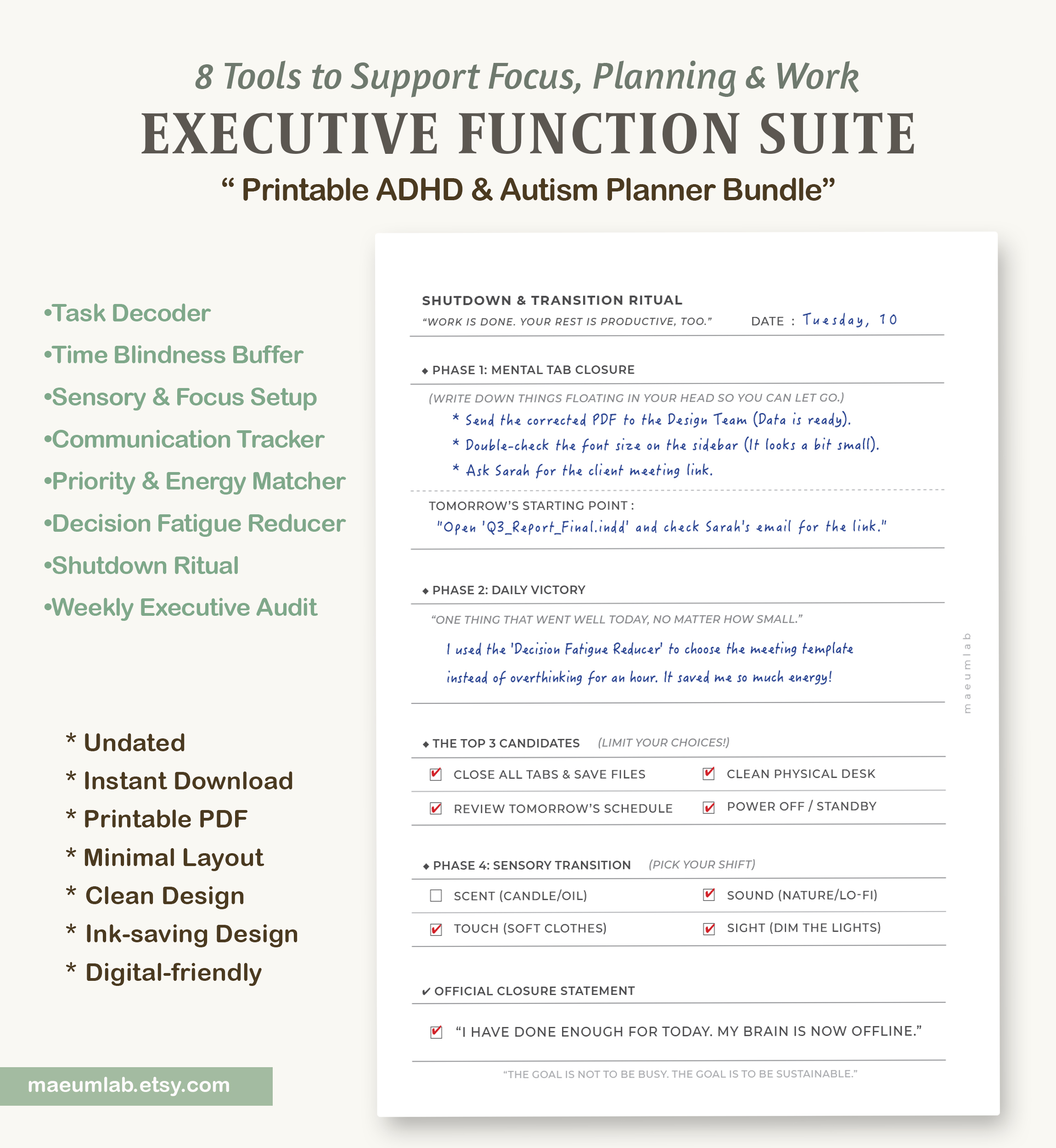
Example shown: Capturing unfinished thoughts, preparing tomorrow’s starting point, and creating a clear transition from work to rest.
8.Weekly Executive Audit
Review what worked, notice what drained you, and adjust your support for the week ahead.
The Weekly Executive Audit brings the entire Executive Function Suite together. Rather than simply asking whether you had a “productive” week, this page helps you look at which tools actually helped, where your energy was affected, and what you may want to change next week.
Use it once a week to notice patterns and gradually build a planning system that fits the way you work.
How to Use It:
- Check which Executive Function Suite tool was most helpful that week.
- Write down why it worked so you can intentionally use that strategy again.
- Identify your biggest energy or sensory drain and the support that helped most.
- Use the Executive Function Scorecard to reflect on areas such as task initiation, focus, and emotional regulation.
- Choose one or two realistic strategies to try next week.
- Finish with a short note to yourself before moving into the new week.
Example
You may notice that meetings felt less exhausting this week because you used the Time Blindness Buffer to leave transition time between them.
Your review might look like:
Most Helpful Tool → Time Blindness Buffer
Biggest Drain → Bright overhead lighting
Best Support → Quiet workspace + preferred focus playlist
Next Week → Use the Task Decoder for Monday’s report and choose a quieter workspace when possible.
The purpose isn’t to grade your week. It’s to turn what you noticed into useful information for the next one.
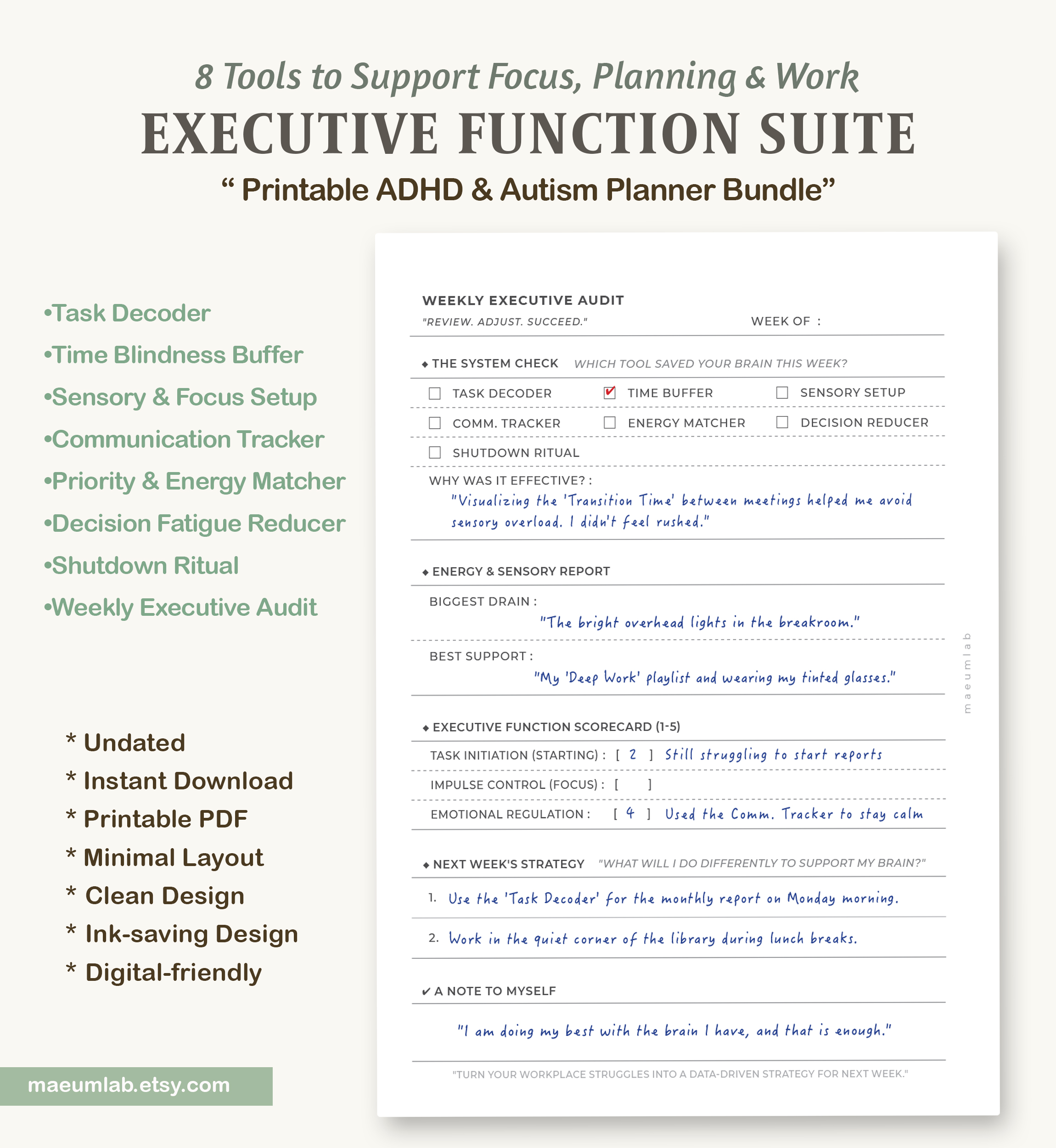
Example shown: Reviewing the week’s most helpful tools, energy and sensory patterns, and choosing practical support strategies for the week ahead.
Build a System That Works for You
Executive function support doesn’t have to mean using every tool every day.
Some days, you may need help breaking down a task. Other days, you may need more transition time, fewer decisions, a quieter environment, or a clear way to end the workday.
The Executive Function Suite is designed to be flexible. Start with the tool that matches what you need right now, notice what helps, and gradually build a system that works with your routines, energy, and everyday demands.
Explore the Executive Function Suite
8 printable tools. One flexible system for planning, focus, and everyday executive function support.
Use the pages individually or combine them to support task initiation, time awareness, sensory needs, communication, prioritization, decision-making, transitions, and weekly reflection.
Looking for more planning tools? Explore the MaeumLab Resource Library for practical guides, planner tips, and step-by-step ways to use our printable planning systems.